Photo Palette Extractor
Turn a photo into reusable colors — choose an image and extract a representative palette, or pick individual pixels. Image processing stays in your browser; the site may still make page, analytics, or ad requests.
Drop an image here
or click to browse · paste from clipboard (Ctrl+V)
Click any color to copy its code.
Palette Library
Palette names and HEX colors are saved in this browser's local storage, not uploaded by the extractor. The photo is not saved.
No saved palettes yet. Extract a palette and hit “Save to Library”.
One solid color in, one automatic swatch out
A flat image makes it easy to distinguish extraction from an exact pixel reading. You can create this input in an image editor; no sample download is needed.
-
Make the input
Create an opaque, 100 × 100-pixel PNG filled with RGB (51, 102, 153), or HEX
#336699. Use 8-bit RGB with no embedded color profile, no gradient, and no transparency. Do not save it as JPEG. -
Set the controls
Load that PNG above. Set Theme to Default, Sort to Auto, Format to HEX, and Colors to 5. Expect one swatch:
#336699. Switch Format to RGB to seergb(51, 102, 153). -
Compare with Pick Color
Click Pick Color, then the center of the image. It adds a second swatch with the same RGB value. The automatic extractor cannot split a uniform color into five different colors; manual picks are added without deduplication.
Read the mood, then compare your result
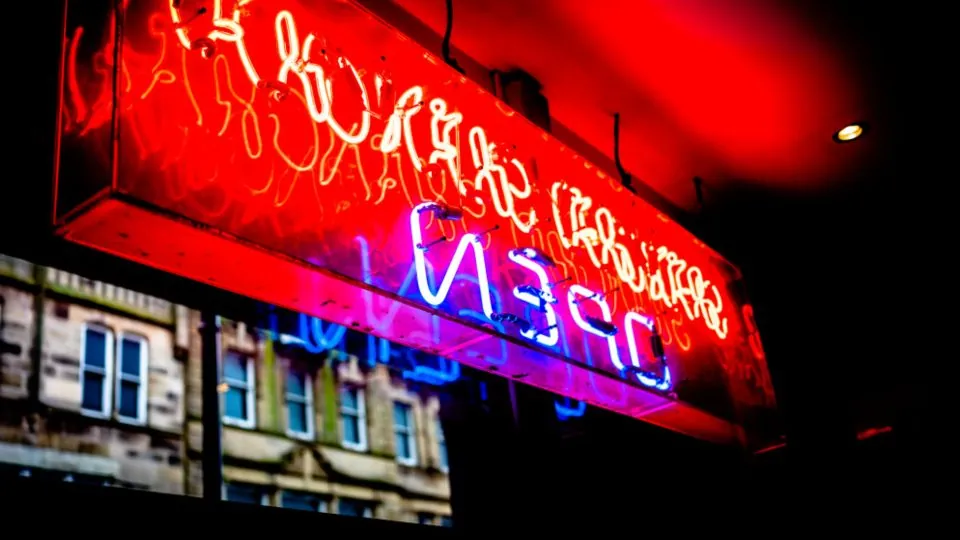
This neon photo and eight reference swatches show how dark backgrounds and bright accents can work together. The live extractor's result depends on the image, theme, and color count; the solid-color example above is the repeatable check.
Reference palette · 8 colors
#090203
#500FED
#FC0100
#B005E9
#F701AF
#0B4CEE
#C2AC7B
#F5F3E7
Dark foundation · red, magenta & blue accents · a light supporting tone
What is a photo color palette extractor?
A color palette extractor analyzes an image and returns representative colors as reusable codes. Designers use it to find a visual direction from photography, developers use the codes in CSS, and artists study how scenes balance tones. This extractor groups sampled pixels, then selects candidates by population and color differences or by the chosen theme. It is a summary of the image, not an inventory of every exact color.
Balanced extraction
Median-cut clustering plus a population-weighted distinctness pass in Default mode helps balance common colors and contrasting accents. Tiny details can still be missed.
Eyedropper precision
Pick Color reads a coordinate from a full-resolution browser canvas, not the reduced extraction sample. It adds RGB only, without transparency.
Flexible output
Five palette themes, four layout positions, HEX / RGB / HSL codes, PNG export, and a local palette library.
Local image processing
The extractor reads the selected image with the Canvas API rather than uploading it. This describes image processing, not a promise that the whole page makes no network requests.
Extract a palette in three steps
-
Upload a photo
Drop an image, click to browse, or paste an image from your clipboard. Use JPG, PNG, or WebP that your browser can decode. An unsupported or damaged file may not load; a lossless PNG is best for checking a known color.
-
Tune the palette
Request 3–10 colors and choose a theme: Default balances accents, Dominant favors larger candidate groups, Light and Dark rank brightness, and Vivid weights saturation by brightness. Changing the theme or color count rebuilds the palette and removes manual picks, so use Pick Color last. Sort only changes the order.
-
Copy or export
Click a swatch or Copy All for the selected code format. Use Export PNG for the photo with its palette, Palette Only for a strip, or Copy Code for developer output. Save to Library keeps the colors for later use in this browser.
Representative colors are not exact pixel measurements
Automatic extraction resizes the image to at most 200 pixels on its longest edge, then uses median-cut groups and rounds each group's average RGB to whole channel values. A swatch can be an average that does not occur at any single source pixel.
- Small details can disappear. Resizing can blend edges. Candidate groups smaller than two sampled pixels or 0.05% of the sample, whichever is larger, are filtered out; if that would remove every group, all candidates are kept. Neither a larger color count nor Vivid guarantees a tiny accent.
- Transparency changes the input. After resizing, samples with alpha below 125 out of 255 are skipped. Remaining samples contribute RGB without an alpha channel in the palette. A fully transparent image can return no swatches. Pick Color also discards alpha, so a transparent area is not a reliable way to sample the background you see behind it.
- Use the right kind of precision. Pick Color reads the full-resolution, browser-decoded image, not the original file's color metadata. JPEG compression, edge blending, embedded color profiles, and browser decoding can affect values. For a known logo fill, choose a lossless source and pick an opaque interior pixel rather than an edge.
Choose the output for your next step
Design reference: PNG
Export PNG combines the image and palette in the selected position; its photo portion is capped at 1,600 pixels wide. Palette Only exports just the swatches, vertically for Left or Right and horizontally for Top or Bottom. Both follow the displayed order. The Color codes checkbox toggles labels, which use HEX even when the live Format is RGB or HSL.
Implementation: Copy Code
Dev export copies CSS custom properties, SCSS variables, a Tailwind configuration snippet, or a JSON array. These use HEX in the displayed order, regardless of Format. The Tailwind output is a configuration fragment to adapt to your project, not a complete stylesheet or an automatically installed theme.
Keep or share the colors
Save to Library stores the palette name, HEX colors, and date locally, not the source photo. It does not sync between browsers, and clearing site data removes it. Copy Tool URL copies only this page's URL, not your image or current palette; send a PNG or copied codes when someone needs the result.
Getting a palette you'll actually use
Extraction is automatic; judgment isn't. Three habits separate a usable palette from a pretty screenshot:
- Feed it opinionated photos. Images with strong lighting and a few dominant subjects make a clearer starting point. Busy scenes can produce similar midtones; try a tighter crop in your image editor before extracting again when the background overwhelms the subject.
- Trim eight down to three-to-five. Eight colors is a reading of the photo, not a design system. Pick one dominant, one or two supports, one accent — then give each a full light-to-dark range in the Shades generator.
- Steal the mood, not the exact hex. A film-still palette tells you the relationship (warm dark + cold accent, say). It's usually better to keep that relationship and nudge the exact values toward your brand than to copy the codes verbatim.
Related tools & guides
- Image Color Picker — Need one exact pixel instead of a whole palette? Pick it with the zoom loupe.
- Color Harmony Generator — Turn any extracted color into a complementary, triadic, or analogous scheme.
- How to choose a color palette from a photo — A short guide to picking the right base photo and trimming the result to 3–5 usable colors.
- How to pick colors from any image — When to sample single pixels by hand and when to let the extractor summarize the whole frame.
- The 60-30-10 rule — Turn five extracted colors into a hierarchy: one dominant field, one supporting layer, one scarce accent.
- What movie color palettes teach us — Read dominant colors, value structure, proportion, and accents in a frame before adapting them to a design.
Frequently asked questions
Is my photo uploaded to a server?
No. This extractor reads your image into browser canvases without uploading it. The palette library and color-label preference use local storage in this browser; clearing site data removes them. Page loads, analytics, and ads may still make separate network requests.
How many colors can I extract?
The slider requests 3 to 10 automatic colors, but images with too few candidate colors can return fewer. Pick Color can bring the total to 12. Start with five, then use our palette guide to assign a role to each color.
Which color code formats are supported?
HEX (like #5B5BD6), RGB, and HSL. The Format switch changes live swatch labels and the text copied by swatches or Copy All. PNG labels, Copy Code exports, and saved-library colors use HEX regardless of that switch.
Why doesn't the palette show a small color I care about?
Resizing, averaging, and noise filtering can remove a tiny accent. Default balances population and color differences; Vivid favors saturation weighted by brightness, so neither guarantees that detail will appear. Use Pick Color on an opaque part of the detail to add its browser-decoded RGB value.
Can I use the extracted colors commercially?
Colors themselves are not copyrightable — a HEX value is just a number. Use extracted palettes freely in any personal or commercial project. The photo itself, of course, keeps whatever license it had.